Thursday, 9 May 2013


How to perform a full virus scan while in safe mode with command prompt

Situation:
How do I start a Windows XP or Windows Server 2003 machine into Safe Mode with Command Prompt so that I may perform a full virus scan?

Solution:
Starting a machine into the mode Safe Mode with Command Prompt may prove to be more successful when removing an infectious threat since the explorer.exe process does not run in this mode.

For Symantec Endpoint Protection:
  1. Isolate (disconnect) all affected machines from the network
  2. Restart these machines into Safe Mode with Command Prompt. Immediately press F8 prior to the operating system load screen. This will display a startup menu with an option for Safe Mode with Command Prompt. Select this option.
  3. After the computer has loaded into this mode, close the Command Prompt window that appears
  4. Press CTRL+ALT+DEL to bring up task manager
  5. Click File > New Task (Run...)
  6. Browse to the install directory for Symantec Endpoint Protection. By default, this is C:\program files\symantec\symantec endpoint protection\
  7. Select SymCorpUI.EXE and click Open
  8. In the Create New Task window, click OK to run the application. This will open Symantec Endpoint Protection
  9. On the left-hand side, click Scan For Threats.
  10. Click Run Full Scan. This will start the scanning process immediately.
Note: Upon running SymCorpUI.EXE, a window may appear with the following message: "It appears that the Symantec Management Client service is not running. You will not be able to manage network protection settings through the main user interface until it is running. Do you want to start the service now?" Click No to this message

For Symantec AntiVirus:
  1. Isolate (disconnect) all affected machines from the network
  2. Restart these machines into Safe Mode with Command Prompt. Immediately press F8 prior to the operating system load screen. This will display a startup menu with an option for Safe Mode with Command Prompt. Select this option.
  3. After the computer has loaded into this mode, close the Command Prompt window that appears
  4. Press CTRL+ALT+DEL to bring up task manager
  5. Click File > New Task (Run...)
  6. Browse to the install directory for Symantec AntiVirus (C:\Program Files\Symantec AntiVirus by default)
  7. Select VPC32.exe and click Open
  8. In the Create New Task window, click OK to run the application. This will open Symantec AntiVirus
  9. Click the Scan menu and select Full Scan
  10. Click Scan at the bottom-right corner.

How to perform a full virus scan while in safe mode with command prompt

at 02:51  |  No comments


How to perform a full virus scan while in safe mode with command prompt

Situation:
How do I start a Windows XP or Windows Server 2003 machine into Safe Mode with Command Prompt so that I may perform a full virus scan?

Solution:
Starting a machine into the mode Safe Mode with Command Prompt may prove to be more successful when removing an infectious threat since the explorer.exe process does not run in this mode.

For Symantec Endpoint Protection:
  1. Isolate (disconnect) all affected machines from the network
  2. Restart these machines into Safe Mode with Command Prompt. Immediately press F8 prior to the operating system load screen. This will display a startup menu with an option for Safe Mode with Command Prompt. Select this option.
  3. After the computer has loaded into this mode, close the Command Prompt window that appears
  4. Press CTRL+ALT+DEL to bring up task manager
  5. Click File > New Task (Run...)
  6. Browse to the install directory for Symantec Endpoint Protection. By default, this is C:\program files\symantec\symantec endpoint protection\
  7. Select SymCorpUI.EXE and click Open
  8. In the Create New Task window, click OK to run the application. This will open Symantec Endpoint Protection
  9. On the left-hand side, click Scan For Threats.
  10. Click Run Full Scan. This will start the scanning process immediately.
Note: Upon running SymCorpUI.EXE, a window may appear with the following message: "It appears that the Symantec Management Client service is not running. You will not be able to manage network protection settings through the main user interface until it is running. Do you want to start the service now?" Click No to this message

For Symantec AntiVirus:
  1. Isolate (disconnect) all affected machines from the network
  2. Restart these machines into Safe Mode with Command Prompt. Immediately press F8 prior to the operating system load screen. This will display a startup menu with an option for Safe Mode with Command Prompt. Select this option.
  3. After the computer has loaded into this mode, close the Command Prompt window that appears
  4. Press CTRL+ALT+DEL to bring up task manager
  5. Click File > New Task (Run...)
  6. Browse to the install directory for Symantec AntiVirus (C:\Program Files\Symantec AntiVirus by default)
  7. Select VPC32.exe and click Open
  8. In the Create New Task window, click OK to run the application. This will open Symantec AntiVirus
  9. Click the Scan menu and select Full Scan
  10. Click Scan at the bottom-right corner.

Read More


How to Delete Viruses Using DOS Commands


Computer viruses are designed to complete malicious tasks. 

MS-DOS, also known as Windows Command Line, is a tool created by Microsoft which allows users to communicate with their Windows operating system. There are several reasons you may want to remove a virus using MS-DOS commands. For example, the virus may have disabled many of the other tools on your computer, or you may not have access to the Internet. Fortunately, you can use MS-DOS commands to remove the virus automatically or manually. Have a question? Get an answer from a Nerd now!

Instructions

       Click "Start," type "cmd" (without quotes) into the "Search Programs and Files" box and press "Enter." Or, if you are using a version of Windows released prior to Windows Vista, click "Start > Run," type "cmd" (without quotes) into the dialog box and click "OK." 
 
        The Command Prompt opens Type "C:\Program Files\Windows Defender\MpCmdRun.exe --Scan -2" (without quotes) into the Command Prompt and press "Enter." Windows Defender will now scan your entire computer and remove any viruses that it detects.

         Type "regsvr32 /u name.dll" (without quotes) into the Command Prompt and press "Enter." Note that "name.dll" should be replaced with the name of the Dynamic Link Library (DLL) associated with the virus. To find this information, type the name of the virus into the "Search" box found on one of the online manual removal websites (see Resources).

          Type "REG DELETE registryfolder/registryentry" (without quotes) into the Command Prompt and press "Enter." Note that "registryfolder/registryentry" should be replaced with the name of the registry entry associated with the virus. To find this information, type the name of the virus into the "Search" box found on one of the online manual removal websites (see Resources).

           Type "DEL filename" (without quotes) into the Command Prompt and press "Enter." Note that "filename" should be replaced with the name of the file associated with the virus. To find this information, type the name of the virus into the "Search" box found on one of the online manual removal websites (see Resources).

Close the Command Prompt and restart your computer.

How to Delete Viruses Using DOS Commands

at 02:45  |  No comments


How to Delete Viruses Using DOS Commands


Computer viruses are designed to complete malicious tasks. 

MS-DOS, also known as Windows Command Line, is a tool created by Microsoft which allows users to communicate with their Windows operating system. There are several reasons you may want to remove a virus using MS-DOS commands. For example, the virus may have disabled many of the other tools on your computer, or you may not have access to the Internet. Fortunately, you can use MS-DOS commands to remove the virus automatically or manually. Have a question? Get an answer from a Nerd now!

Instructions

       Click "Start," type "cmd" (without quotes) into the "Search Programs and Files" box and press "Enter." Or, if you are using a version of Windows released prior to Windows Vista, click "Start > Run," type "cmd" (without quotes) into the dialog box and click "OK." 
 
        The Command Prompt opens Type "C:\Program Files\Windows Defender\MpCmdRun.exe --Scan -2" (without quotes) into the Command Prompt and press "Enter." Windows Defender will now scan your entire computer and remove any viruses that it detects.

         Type "regsvr32 /u name.dll" (without quotes) into the Command Prompt and press "Enter." Note that "name.dll" should be replaced with the name of the Dynamic Link Library (DLL) associated with the virus. To find this information, type the name of the virus into the "Search" box found on one of the online manual removal websites (see Resources).

          Type "REG DELETE registryfolder/registryentry" (without quotes) into the Command Prompt and press "Enter." Note that "registryfolder/registryentry" should be replaced with the name of the registry entry associated with the virus. To find this information, type the name of the virus into the "Search" box found on one of the online manual removal websites (see Resources).

           Type "DEL filename" (without quotes) into the Command Prompt and press "Enter." Note that "filename" should be replaced with the name of the file associated with the virus. To find this information, type the name of the virus into the "Search" box found on one of the online manual removal websites (see Resources).

Close the Command Prompt and restart your computer.

Read More


How to view Removed Videos on Youtube

Hello Friends,

Have you ever found an Interesting Video on Youtube but when you try to view that video you find out that the video has been removed by Youtube due to terms of Use Violation. According to the policy of Youtube, it has a right to remove any video from public viewing if it is found to be violating the terms and conditions of Youtube. But now I will show you how to view that video.

Just follow the steps given bellow and watch your favorite videos:

Go to the page where you got the error message that this video has been removed.

Next click on the Video’s Publisher, that is- the Uploader of that video.

It should show you the uploader’s video uploads in the right.

Find the Video which he uploaded and is now removed

Click on it

Hurray! You have got access to watch the removed Video

Now Sometimes you can open the video in New Tab and it wont show the 
message that the video is removed due to violating the terms.. Sometimes it may show..

Hope this worked for you

How to view Removed Videos on Youtube

at 02:43  |  No comments


How to view Removed Videos on Youtube

Hello Friends,

Have you ever found an Interesting Video on Youtube but when you try to view that video you find out that the video has been removed by Youtube due to terms of Use Violation. According to the policy of Youtube, it has a right to remove any video from public viewing if it is found to be violating the terms and conditions of Youtube. But now I will show you how to view that video.

Just follow the steps given bellow and watch your favorite videos:

Go to the page where you got the error message that this video has been removed.

Next click on the Video’s Publisher, that is- the Uploader of that video.

It should show you the uploader’s video uploads in the right.

Find the Video which he uploaded and is now removed

Click on it

Hurray! You have got access to watch the removed Video

Now Sometimes you can open the video in New Tab and it wont show the 
message that the video is removed due to violating the terms.. Sometimes it may show..

Hope this worked for you

Read More


Removing virus without antivirus is a risky task .If you are technical and you know about windows functioning then read this carefully and if you are not sure so don’t touch this, it can corrupt your software and operating system. In the article how to delete virus using command prompt the method is DOS command prompt but this method is registry editing one registry edit expert can change everything in the operating system and the software.
Every file and program has its own registry value basically virus changes these values and change the functioning of the program like task messenger disabled or task messenger opens for some seconds, pen drive is not showing data etc.
To change the registry key you have to run Microsoft Registry Editor : Regedit.exe
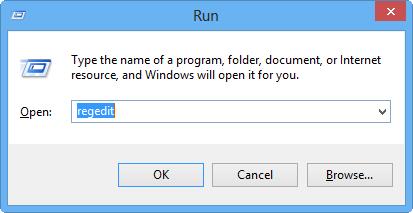
Press windows key+ r  in the run window  type the command  regedit and press enter.Or simply go to the start > run >regedit and press enter .


run window looks like this
If you are not able to open registry editor then may be virus has been blocked it ,To open registry editor restart your pc and run windows as safe mode .In the safe mode, windows will ask you for administrator password to perform action on windows registry .
In the registry editor msconfig.exe or system configuration control our start-up programs. we can open simply go to the run and type msconfig and press enter.
System Registry has these entry nodes
  1. Run
  2. RunOnce
Virus can restore after the restart of pc, if you don’t know so antivirus is important. These run and runonce nodes manage programs. Our starting programs stores in HEKY_LOCAL_MACHINE.Find the node HEKY_LOCAL_MACHINE |SOFTWARE |Microsoft |Windows |CurrentVersion |run .If the file inside the run and runonce is unwanted or you don’t know about this Google this file and delete that if this is spyware or virus.

How to Remove virus without antivirus using windows registry editor in windows 8

at 02:41  |  No comments


Removing virus without antivirus is a risky task .If you are technical and you know about windows functioning then read this carefully and if you are not sure so don’t touch this, it can corrupt your software and operating system. In the article how to delete virus using command prompt the method is DOS command prompt but this method is registry editing one registry edit expert can change everything in the operating system and the software.
Every file and program has its own registry value basically virus changes these values and change the functioning of the program like task messenger disabled or task messenger opens for some seconds, pen drive is not showing data etc.
To change the registry key you have to run Microsoft Registry Editor : Regedit.exe
Press windows key+ r  in the run window  type the command  regedit and press enter.Or simply go to the start > run >regedit and press enter .


run window looks like this
If you are not able to open registry editor then may be virus has been blocked it ,To open registry editor restart your pc and run windows as safe mode .In the safe mode, windows will ask you for administrator password to perform action on windows registry .
In the registry editor msconfig.exe or system configuration control our start-up programs. we can open simply go to the run and type msconfig and press enter.
System Registry has these entry nodes
  1. Run
  2. RunOnce
Virus can restore after the restart of pc, if you don’t know so antivirus is important. These run and runonce nodes manage programs. Our starting programs stores in HEKY_LOCAL_MACHINE.Find the node HEKY_LOCAL_MACHINE |SOFTWARE |Microsoft |Windows |CurrentVersion |run .If the file inside the run and runonce is unwanted or you don’t know about this Google this file and delete that if this is spyware or virus.

Read More
 Hacking. We often think of it happening to companies or governments. But it also happens to ordinary people. But we can take steps to stop it.

Step 1: Tough passwords

You need to have a separate password for each account, so that if one account gets hacked, all of your vital information is not vulnerable. The problem is that it's tough to remember dozens of passwords. The answer: a password manager. There are a variety of third-party software programs that will create and store passwords for you.

Step 2: Two-Part Authentication

When you log on to many different computers — especially shared computers — to access your email account, you are especially vulnerable to hackers.
Many websites are moving toward two-step verification. Google is one. Essentially, it means that you need more than a password to log into a new account. If you use the service, you have to remember a password but also remember a special key that gets sent to you as a text.

Step 3: Change Your Behavior

"I hate to say it, but the reality is they need to share a little bit less," says Ulanoff.
Ulanoff says we probably don't want to go back to the pre-social media days, but oversharing may not be just embarrassing, it may cause harm. Things like birth dates and graduation years can be used to access your information. That doesn't mean you need to shut down your online presence, but be careful what details you put out there.

Step 4: Consolidation

Remember Friendster? Or MySpace? Whitson Gordon, senior editor of Lifehacker.com, says that back in the early days of the Internet, it would have been hard to imagine "10, 20 years down the road when we would have so many services we're grappling with."
So sit down and think about the last 10 years of your online life. And then delete the accounts for the services you signed up for and no longer use.

Step 5: Back It Up

"If there's one thing I have to hammer home with everybody, it's back up your data," Gordon says. You can either use an external hard drive or an online service. As more of the things we care about get stored electronically, the more vulnerable they are to get lost. If your smartphone gets stolen with wedding photos on it, there won't be as much heartbreak.

5 Ways To Avoid Being Hacked

at 02:21  |  No comments

 Hacking. We often think of it happening to companies or governments. But it also happens to ordinary people. But we can take steps to stop it.

Step 1: Tough passwords

You need to have a separate password for each account, so that if one account gets hacked, all of your vital information is not vulnerable. The problem is that it's tough to remember dozens of passwords. The answer: a password manager. There are a variety of third-party software programs that will create and store passwords for you.

Step 2: Two-Part Authentication

When you log on to many different computers — especially shared computers — to access your email account, you are especially vulnerable to hackers.
Many websites are moving toward two-step verification. Google is one. Essentially, it means that you need more than a password to log into a new account. If you use the service, you have to remember a password but also remember a special key that gets sent to you as a text.

Step 3: Change Your Behavior

"I hate to say it, but the reality is they need to share a little bit less," says Ulanoff.
Ulanoff says we probably don't want to go back to the pre-social media days, but oversharing may not be just embarrassing, it may cause harm. Things like birth dates and graduation years can be used to access your information. That doesn't mean you need to shut down your online presence, but be careful what details you put out there.

Step 4: Consolidation

Remember Friendster? Or MySpace? Whitson Gordon, senior editor of Lifehacker.com, says that back in the early days of the Internet, it would have been hard to imagine "10, 20 years down the road when we would have so many services we're grappling with."
So sit down and think about the last 10 years of your online life. And then delete the accounts for the services you signed up for and no longer use.

Step 5: Back It Up

"If there's one thing I have to hammer home with everybody, it's back up your data," Gordon says. You can either use an external hard drive or an online service. As more of the things we care about get stored electronically, the more vulnerable they are to get lost. If your smartphone gets stolen with wedding photos on it, there won't be as much heartbreak.

Read More

Text Widget

Blogger templates. Proudly Powered by Blogger.